Skip to content
Menu Close

How to Choose a Touch Screen Kiosk in 2026?

Choosing a Touch Screen Kiosk in 2026 is not just a matter of comparing screen sizes or prices. The right choice depends on where people will use it, what they need to do, and who will maintain it. A kiosk beside a busy entrance faces different demands from one at a quiet reception desk. Bright sunlight, frequent cleaning, limited floor space, and long queues all matter.

Usability expert Don Norman has observed, “Good design is actually a lot harder to notice than poor design, in part because good designs fit our needs so well that the design is invisible.” That idea is useful when evaluating a Touch Screen Kiosk. Can visitors find the main task quickly? Does the screen respond reliably to a light touch? Are buttons easy to reach from a standing position or a wheelchair? Small details can shape the whole experience.

This guide looks at practical factors, including display size, touch technology, operating environment, accessibility, software compatibility, security, and support. It also considers total cost, not just the purchase price: installation, updates, repairs, and cleaning can change the calculation. A checklist helps, but it cannot predict every real-world problem. That’s worth remembering. Specifications may look reassuring on paper, while a poorly placed kiosk still frustrates users. Use the criteria here to compare options, ask suppliers specific questions, and test a unit in conditions close to its intended setting.
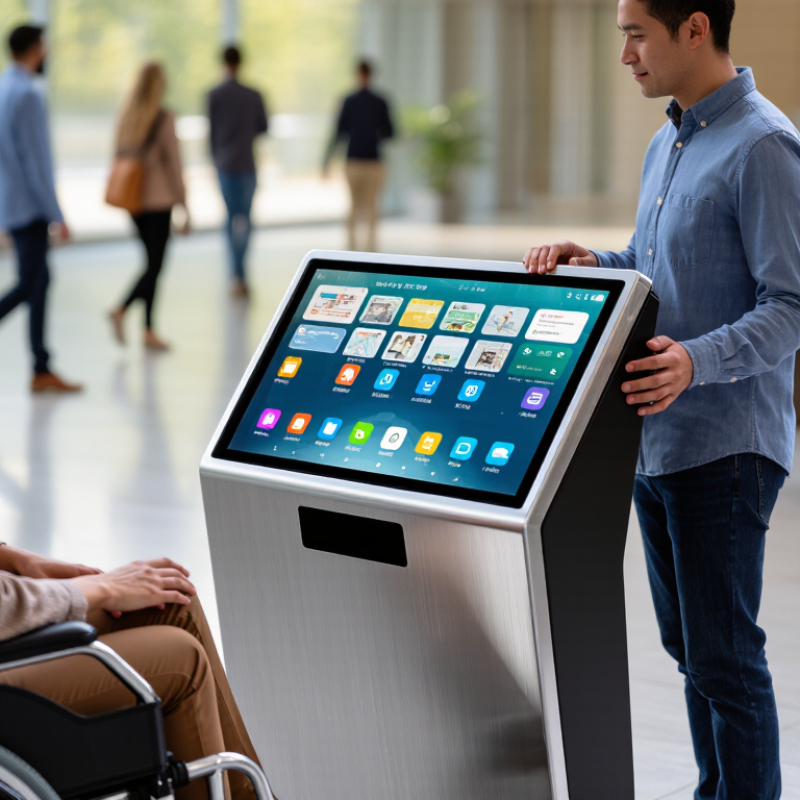
How to Choose a Touch Screen Kiosk in 2026?

Define the Kiosk’s Purpose and User Requirements

A touch screen kiosk should solve a specific task, not simply look modern. Decide whether people will use it to check in, find a room, place an order, or retrieve information. Each purpose calls for a different interface, screen position, and amount of guidance. That changes everything. A visitor checking in may need large buttons and a clear confirmation; someone browsing a directory may need search, maps, and time to explore.

Describe the main users before choosing hardware. Consider their height, language, vision, mobility, and familiarity with touch screens. Watch real users. Note where they pause, misread a label, or reach awkwardly. If observation is not possible, test a paper prototype with several people who match the expected audience. Count the steps required for the most common task, and ask what happens when a user makes a mistake. A kiosk in a busy lobby may need a bright display, simple prompts, and a quick reset. A quieter service area can support longer forms, but only if users have enough space and privacy. Requirements can conflict: larger text may mean fewer choices per screen. Record those trade-offs instead of assuming one design will suit everyone. A small pilot often reveals needs that planning missed.

How to Choose a Touch Screen Kiosk in 2026? — Define the Kiosk’s Purpose and User Requirements

Decision Dimension Questions to Define Example Requirement Kiosk Design Implication
Primary purpose What should the kiosk help people accomplish, and which steps should it handle without staff assistance? A visitor can find a destination, view directions, and request assistance if needed. Prioritize a clear starting screen, concise task flow, and a visible way to get help.
Target users Who will use it? Consider age, language, familiarity with touch screens, and whether users may have disabilities. A public-facing kiosk serves first-time visitors, returning customers, and people using different languages. Use plain language, recognizable controls, readable text, and language selection that is easy to find.
Core tasks and frequency Which tasks are essential, how often will they be used, and how long should each interaction take? Most users need quick access to a small set of common actions, while less frequent options remain available. Put the most-used tasks first and avoid making users navigate through unrelated options.
Touch interaction Will users tap, type, scroll, sign, or enter information? Will they use the screen while standing or seated? Users search for a record using an on-screen keyboard and confirm their selection with a large button. Choose a screen size and mounting arrangement that suit the interface and expected posture; test touch targets with real users.
Accessibility Can people with different visual, motor, hearing, and cognitive abilities complete the key tasks? Essential actions are available through clear on-screen instructions, sufficient contrast, and more than color alone. Plan for accessible interface design and appropriate mounting. Check applicable local accessibility rules; WCAG 2.2 AA is a useful digital-interface target, not a substitute for local requirements.
Location and environment Will the kiosk be indoors or outdoors? Consider lighting, glare, temperature, moisture, dust, and available space. A kiosk in a bright public area must remain readable under changing ambient light and withstand frequent use. Assess screen brightness, reflections, enclosure protection, ventilation, and placement before choosing hardware.
Privacy and security Will users enter personal, payment, or account information? What should happen when a session ends? A user can complete a private transaction without leaving personal details visible to the next person. Define session timeouts, data-handling rules, screen positioning, and any required payment or security controls with the responsible teams.
Peripherals and integrations Does the task require a printer, scanner, card reader, camera, headphones, or connection to existing systems? A check-in workflow scans a confirmation code and connects to the organization’s appointment system. List required devices and software interfaces early; verify compatibility, installation space, and support responsibilities.
Support and maintenance Who will clean, monitor, troubleshoot, and update the kiosk? How quickly must service be restored? Operations staff need to identify an offline kiosk and follow a documented process for reporting the fault. Plan for remote status monitoring where appropriate, accessible service access, cleaning procedures, and a clear maintenance owner.
Success measures How will you know the kiosk is meeting its purpose without collecting unnecessary personal data? Track task completion, abandonment, assistance requests, and availability using privacy-conscious methods. Set a baseline and review operational metrics after launch; use findings to improve the task flow and support plan.

Planning tip: Write down the kiosk’s primary task, user groups, operating location, accessibility needs, and required integrations before comparing hardware.

Assess the Installation Environment and Accessibility Needs

A kiosk that works in a quiet office may struggle beside a sunny entrance. Visit the proposed location at different times of day. Check glare on the display, nearby lighting, and whether people can approach without blocking a doorway. Measure the available space, including room for a wheelchair to turn and pause. Small details matter.

The environment affects hardware choices. Dust, moisture, temperature changes, and frequent contact can influence the enclosure and screen specification. A floor-mounted unit may suit a spacious lobby, while a wall-mounted model can preserve circulation space. Check power and network routes before installation; exposed cables can create trip hazards and complicate cleaning. A site survey is more useful than relying on a floor plan alone.

Accessibility needs should shape the height, tilt, and interface—not be added at the end. Position controls within comfortable reach, and test the screen from both standing and seated positions. Use clear text, strong contrast, and large touch targets. If visitors may have limited vision or hearing, consider adjustable text, audio guidance, and a headphone connection. Test these features with real users when possible. One assumption can be wrong: a screen that looks reachable on paper may feel awkward in a busy space. Check local accessibility guidance and observe how people actually move through the area.

How to Choose a Touch Screen Kiosk in 2026?

Assess the installation environment and accessibility needs using these ADA reference dimensions.

Allow at least 30 × 48 inches of clear floor space for a wheelchair approach, keep applicable forward-reach controls between 15 and 48 inches above the floor, and provide a 60-inch turning space where required. Check the applicable ADA Standards and local codes for the kiosk’s specific approach and site conditions.

Compare Screen, Hardware, and Connectivity Specifications

How to Choose a Touch Screen Kiosk in 2026?
Compare Screen, Hardware, and Connectivity Specifications

A kiosk’s screen should fit its actual setting, not just look impressive in a product photo. Measure viewing distance and available space before choosing a size. A 24-inch display may suit a reception desk, while a larger screen can make maps easier to read across a lobby. Check brightness against nearby windows and overhead lights. Glare is easy to underestimate. Test the interface with the fingers people will actually use, including gloved hands where relevant, and confirm that text stays legible at a comfortable angle.

Hardware specifications affect how reliably the kiosk handles daily use. Match the processor and memory to the workload: a simple check-in page needs less capacity than interactive maps or video. Look for a sturdy enclosure, accessible service panels, and cooling suited to the installation area. In a busy entrance, dust and repeated contact matter. Ask how the touch surface and internal components can be inspected or replaced. A tidy specification sheet does not guarantee easy maintenance; real sites are messier.

Connectivity needs depend on what the kiosk must update or communicate. Wired Ethernet can provide a stable connection in a fixed installation, while Wi-Fi may simplify placement where cabling is difficult. Check supported network standards, available ports, and whether the device can operate temporarily if the connection drops. For remote monitoring, clarify what status data is available and how updates are managed. Test the kiosk on the intended network before installation; a signal that looks strong on a phone may behave differently inside a metal cabinet.

Evaluate Software Compatibility, Security, and Maintenance

A touchscreen kiosk should fit the software you already rely on, not just look modern in a showroom. Check its operating-system support period, browser requirements, network interfaces, and compatibility with scanners, printers, and payment peripherals. Test the full workflow, including offline behavior and software updates. Test it in person. A smooth demo can hide delays or failed connections when several devices run together.

Security needs the same practical scrutiny. Ask how updates are signed, how unused ports are disabled, and whether staff can use separate access permissions. The 2024 Data Breach Investigations Report found that 68% of breaches involved a non-malicious human element. Clear admin controls and staff procedures matter. The 2024 Cost of a Data Breach Report put the global average breach cost at $4.88 million; that figure is not kiosk-specific, but it shows why basic safeguards deserve attention. Maintenance is easy to underestimate. Confirm who applies patches, how quickly replacement parts arrive, and whether remote diagnostics are available. Keep a spare screen or power supply if downtime would disrupt service. One awkward detail: frequent updates improve security, yet poorly timed updates can interrupt customers. Plan a rollback and test updates outside busy hours.

Review Total Cost, Supplier Support, and Upgrade Options

How to Choose a Touch Screen Kiosk in 2026?

A kiosk’s purchase price is only the starting point. Compare installation, network fees, cleaning, repairs, energy use, and eventual replacement. MarketsandMarkets estimated the global self-service kiosk market at USD 30.8 billion in 2024, forecasting USD 49.2 billion by 2029. That growth suggests wider adoption, but it does not guarantee a particular unit will be easy or affordable to maintain. Ask suppliers for a written support plan: response times, local spare-parts availability, remote diagnostics, and the cost of service visits. Small details matter. A blocked printer or cracked screen can leave a busy checkout point unusable.

Check upgrade paths before signing. Can technicians replace the computer, screen, scanner, or payment module without replacing the whole enclosure? Confirm how long software and security updates will be provided, and whether future components will fit the same mounts and cabling. Uptime Institute’s 2024 Annual Outage Analysis found that 54% of respondents said their most recent significant outage cost more than USD 100,000. That figure covers digital infrastructure broadly, not kiosk fleets, but it shows why downtime deserves a line in the budget. A low quote can still be the wrong choice. I would also challenge one assumption: modular designs sound sensible, yet upgrades may cost more than replacement if parts are scarce or labor is specialized. Get that pricing in writing.

Site Feedback
Close